

How to Install and Run n8n Locally with Docker
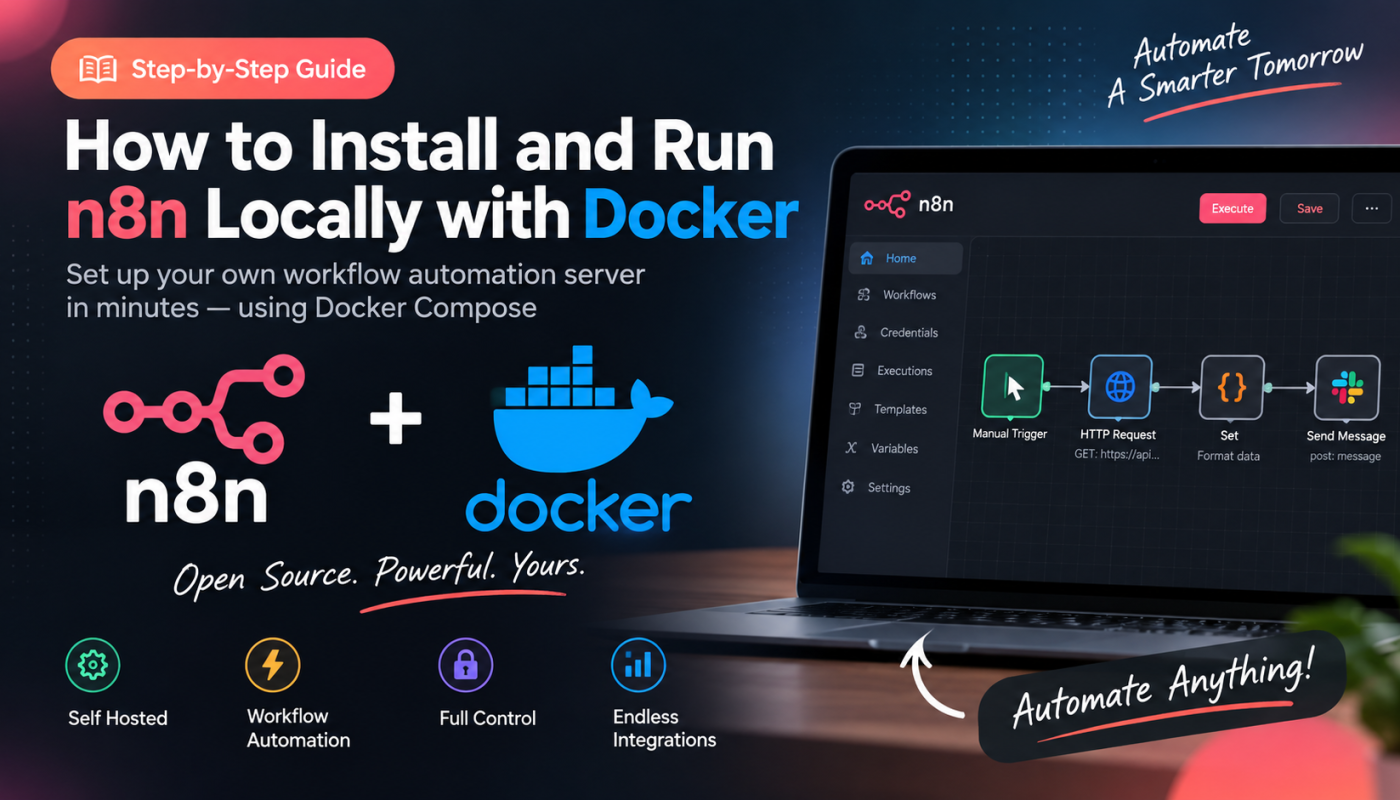
How to Set Up n8n Locally with Docker
Learn how to install, configure and run n8n locally using Docker Compose.
Introduction
n8n is a powerful workflow automation platform that can be run locally using Docker.
Running n8n locally provides a convenient environment for development, testing and automation experiments.
What Is n8n?
n8n is a workflow automation platform that allows applications and services to communicate with each other through automated workflows.
Local deployment provides a useful environment for development, testing and learning without depending on a hosted n8n instance.
Prerequisites
Before starting, make sure Docker is installed and running on your computer.
- Docker Desktop installed
- Docker Compose available
- A terminal such as PowerShell, Command Prompt or Bash
How the Setup Works
Docker runs n8n inside a container while a persistent volume stores your n8n data.
Your Computer
Runs Docker Desktop.
Docker
Runs the n8n container.
n8n
Provides the workflow automation interface.
Create the Project Folder
Create a dedicated directory for the n8n Docker configuration.
mkdir n8n
cd n8nCreate Docker Compose Configuration
Create a file named
docker-compose.yml.
services:
  n8n:
    image: docker.n8n.io/n8nio/n8n
    ports:
      - "5678:5678"
    volumes:
      - n8n_data:/home/node/.n8n

volumes:
n8n_data:The Docker volume ensures that your n8n configuration and workflow data persist when the container is recreated.
Start n8n
From the project directory, run:
docker compose up -dDocker will download the required image and start the n8n container.
Open n8n
Open the following address in your browser:
If the n8n interface appears in your browser, the Docker installation is working correctly.
Create Your First Workflow
Open n8n
Open the n8n dashboard in your browser.
Create a workflow
Create a new workflow from the dashboard.
Add nodes
Add a trigger and one or more actions.
Useful Docker Commands
docker compose ps
Check running containers.
docker compose logs -f
View n8n logs.
docker compose stop
Stop the containers.
docker compose start
Start the containers again.
docker compose down
Stop and remove the containers.
Update n8n
Pull the latest image and recreate the container:
docker compose pull
docker compose up -dWhere Is n8n Data Stored?
The Docker Compose configuration uses a named volume for persistent n8n data.
n8n_data:/home/node/.n8nThis allows workflows and configuration to remain available when the container is restarted.
Troubleshooting
Port 5678 is already in use
docker compose psCheck whether another service is already using port 5678.
Container is not running
docker compose logsReview the container logs for the specific error.
What Can You Build Next?
Once n8n is running locally, you can start building automation workflows that connect APIs, applications and services.
- API automation
- AI workflows
- Email automation
- Webhook workflows
- Database automation
n8n Is Ready to Automate
Your local n8n environment is now ready. Start experimenting with workflows and build your own automation system.
Open n8n →